Connect a project
Connect your AI agent to the right Grace project.
Before you begin: open your project in Grace, then choose Connect AI agent. For a project with no talents, Configure this project opens the same window.
Grace checks compatibility with MCP OAuth-compliant clients for the profiles tested. These setup instructions do not certify every version of Claude Code, Codex, or Copilot: qualifying those products requires an actual account and a verified connection. An observed Copilot request was replayed, but replaying it does not certify the commercial product.
1. Choose a setup method
The window offers two methods. Their purpose remains visible as a tag:
- Automatic — Recommended prepares the required files with a single command;
- Manual — Guided shows one file to install at a time.
You can switch between the methods without losing your progress in the manual steps.
2. Choose your environment
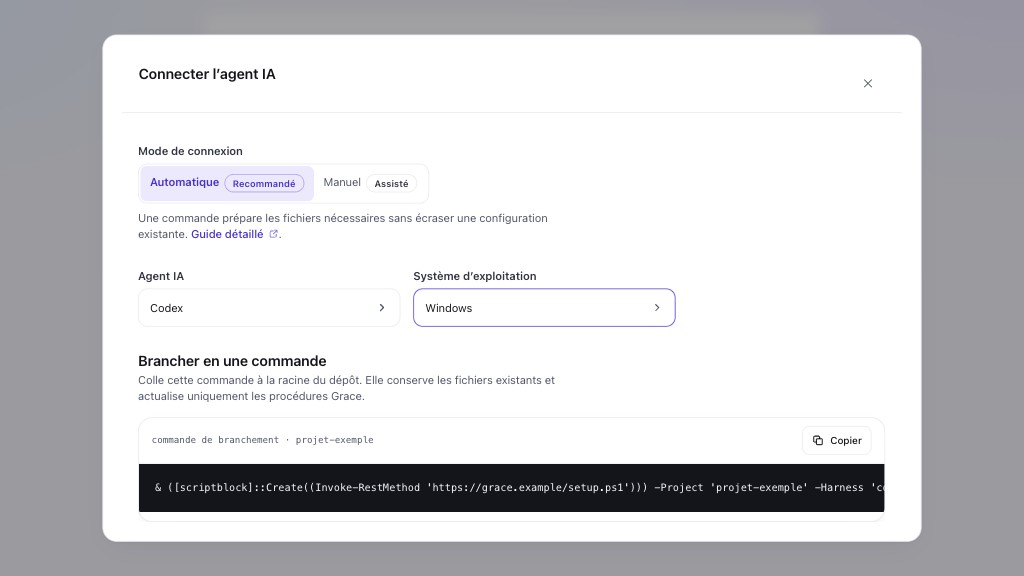
Under AI agent, select the tool you use, then choose Operating system. GitHub Copilot CLI and GitHub Copilot in VS Code are separate choices: the first configures the terminal, the second configures the editor. Grace waits for both choices before showing the appropriate steps.
3. Follow the displayed steps
Automatic setup
Copy Connect in one command and run it at the root of your repository. It prepares the AI agent configuration, instructions block, Grace procedures and, for Claude Code or Codex, the appropriate review profiles.
The command uses curl and sh on macOS or Linux, and PowerShell with
Invoke-RestMethod on Windows.
The terminal shows the project, AI agent, and status of each file in three sections. Once the files are ready, it shows the commands to authenticate and verify Grace. In simulation mode, it only shows planned operations and confirms no files were written.
It is safe to rerun: a second run preserves existing configuration and instructions, updates the Grace procedures, and refreshes its own review profiles without touching other profiles in the repository. If the MCP configuration already contains other servers, the command preserves them and adds Grace: it merges JSON formats with Node.js and appends a complete block to Codex and Mistral Vibe TOML formats. Without Node.js, an existing JSON file remains intact and an explicit error is shown. Invalid JSON or a symbolic-link file is rejected before any changes.
Automatic setup writes only to the current project, including
.codex/config.toml for Codex. It never changes the user's global MCP configuration.
Windsurf only supports a global MCP file, so Grace does not offer an
automatic command for that agent and instead offers explicit manual steps.
Manual setup
Use Next and Previous to move through three preparation steps:
- copy or download the configuration into the specified file;
- copy or download the Wake the AI agent block into the instructions file;
- copy or download each Grace procedure to its specified location.
Named AI agents add a fourth step for authentication and verification.
The Other agent · AGENTS.md choice retains three steps: Grace cannot invent
commands for an unidentified tool. Only one step is visible at a time, but its contents
are fully readable without an accordion. Paths use your system's format, notably
%USERPROFILE% and backslashes on Windows.
4. Sign in
Follow the fourth step shown for your AI agent:
| AI agent | Authenticate Grace | Verify the connection |
|---|---|---|
| Claude Code | claude mcp login grace | claude mcp list |
| Cursor | agent mcp login grace | agent mcp list-tools grace |
| VS Code | Open MCP: List Servers, select Grace, and start it | Check Grace in the same list, then its tools in chat |
| GitHub Copilot in VS Code | Open MCP: List Servers, select Grace, and start it | Check Grace in the same list, then its tools in Copilot Chat |
| GitHub Copilot CLI | Run copilot, then /mcp auth grace | /mcp show grace |
| Windsurf | In Cascade, open MCPs, then Grace | Check that the connection and Grace tools are active |
| Codex | codex mcp login grace | codex mcp list |
| Mistral Vibe | Run vibe, then /mcp login grace | /mcp status |
OAuth authorization opens in the browser when the AI agent initiates it.
If Grace shows Choose a Grace account, select the account to use or
Use another account to sign in with a different identity. Choosing an account
does not grant permission: review the request next and select Authorize or
Deny. If the request expires or the browser shows a validation error, close
the page and restart authentication from your AI agent. Do not edit the
authorization link; if the error persists, share its message with your
administrator without sending the full link or a token.
Check the named client and permissions before authorizing the connection. After signing out
of Grace, reconnect your agent: refreshing a token will not restore a deleted session.
If an old connection stops working after a Grace update, authenticate again.
If access is still refused, select Connection failing? in the setup guide and
follow the recovery instructions for your application.
Signing in again may preserve the old OAuth registration; do not copy an old
token into the configuration.
If Copilot CLI interactive sign-in is unavailable, use the fallback shown by
Grace: export GRACE_API_KEY in the terminal session, then apply the alternative
configuration. Never copy the key's value into the repository.
You have succeeded when Grace is connected and its tools are available in your AI agent.
Enable a Grace Info pentest session
Grace pentesting helps improve code quality by identifying weaknesses to fix. Security is a chain of value: design, development, checks, monitoring, and incident response complement each other. Pentesting contributes to that chain but does not replace your cybersecurity tools or specialist teams. A result with no findings does not guarantee there are no vulnerabilities.
In your project, open Settings → Pentest, then Install Grace Pentest MCP. This dedicated connection is separate from the usual Grace MCP. On the machine running your AI agent, Docker must be installed and running, with Buildx available. Docker Desktop includes it on macOS and Windows; with Docker Engine on Linux, install the official Buildx plugin. The Docker engine runs Linux, even on macOS and Windows: you do not need to run Linux on your computer. On Windows, choose Linux containers in Docker Desktop.
The Docker prerequisites and checks section provides commands to run in your agent's terminal and their expected results; the browser cannot check your installation and therefore does not show an "installed" status. You will need an internet connection to download tools and must allow your agent to run Docker locally.
Then choose your AI agent and operating system. The window shows the dedicated command or two manual steps; it starts no containers or tests and does not change the project's talents. Buildx will build the tools image after your approval, then the agent will run the isolated container: you do not need to write a Dockerfile.
Use a dedicated session in which only the grace-pentest server is active. The general
Grace server must not remain available during testing: it exposes other tools that are not
designed to receive campaign data.
On macOS or Linux:
curl -fsSL 'https://grace.hoppr.tech/setup.sh?profile=pentest' | sh -s -- --project '<projet>' --harness codexOn Windows:
& ([scriptblock]::Create((Invoke-RestMethod 'https://grace.hoppr.tech/setup.ps1?profile=pentest'))) -Project '<projet>' -Harness 'codex'Replace codex with your chosen AI agent and <projet> with the reference shown in Grace. The
script installs no scanner, broker, or agent engine. It only configures the restricted MCP
and confidentiality instructions. If it still finds the general Grace server in
the same file, a declaration different from the expected one, or a linked path, it stops without
changing any files. The pentest profile requires its exact isolated configuration: keep your
usual configuration separate without overwriting it.
Reload MCP, then sign in through OAuth. You have succeeded when the agent shows
the two tools grace_pentest_local_toolbox and grace_pentest_guidance for this server.
The first prepares the tools' public files for the Docker architecture; the second
accepts only three choices — phase, AI agent, and language — and returns versioned instructions.
Secrets, evidence, findings, and campaign reports stay on your system, not with Grace.
After the campaign, disable grace-pentest before re-enabling your usual Grace connection.
Choose the target in Grace
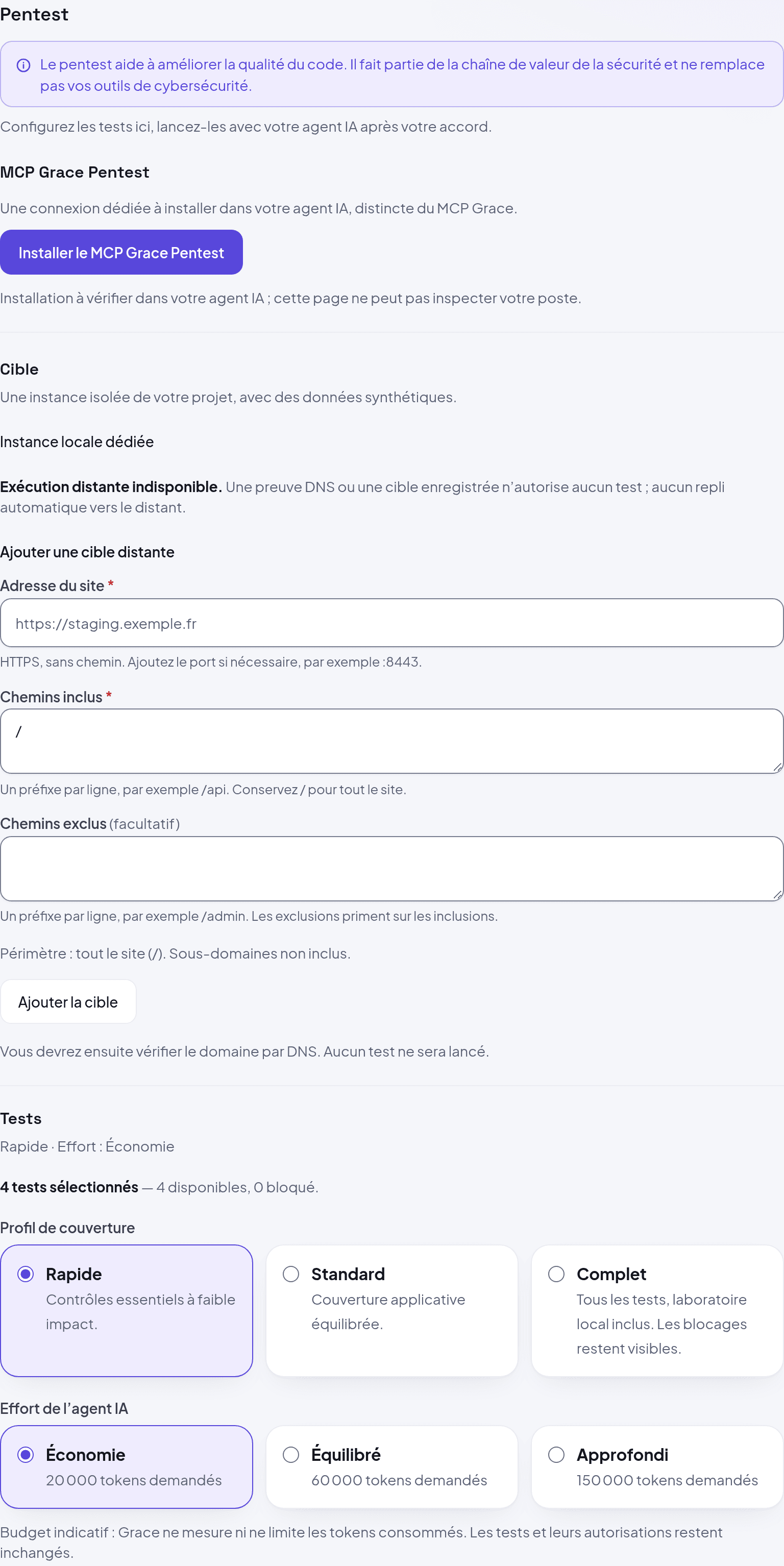
Under Settings → Pentest, the dedicated local instance is selected by default. Only an organization owner or administrator can change the policy; members can view it. Adding a target starts no tests.
Under Add a remote target, enter the Website address over HTTPS, without a path
or credentials. You can specify a port. By default, the scope covers the entire site (/),
without its subdomains. The Included paths and Excluded paths fields are immediately visible:
enter one prefix per line; exclusions take precedence. A summary shows the scope before you add it.
Click Add target. The Verify domain section shows the DNS name and value to publish with your hosting provider. Once the record is published, click Verify DNS proof. The challenge expires after 15 minutes and a verified proof lasts 24 hours. When it expires, Renew DNS challenge gives you a new value to publish. A concurrent change requires reloading the policy; your input is preserved.
Deletion requires confirmation and also removes the DNS proof: you must verify the domain again before reusing it.
Remote execution remains unavailable, even after verification. DNS proof demonstrates control of the domain, not legal authorization to attack it. An expired remote target stays selected but blocked: Grace does not automatically switch to another target.
Choose tests and AI effort
The Tests section directly shows profiles, AI effort, and tests by category, without an accordion. Choose a profile to prepare the selection:
| Profile | Prepared selection |
|---|---|
| Quick | 4 families: secrets, code, dependencies, and HTTP observation. |
| Standard | 12 families, including application checks and TLS configuration. |
| Full | All 16 families, including intrusive tests for the local laboratory. |
Under Test list, select or deselect each family to adjust the selection. The profile becomes
Custom. Associated tools, risks, blockers, and incompatibilities with the target remain
visible. Selecting a test does not necessarily make it available: Full does not remove any blockers.
The Quick profile allows the four offline analyses after you approve the files or
captured responses to inspect. Code analysis covers three targeted rules, not all vulnerabilities.
Local HTTP authorization, authentication, injection canary, and business logic
checks are also available with authorization. Image configuration analyzes approved
Dockerfiles and Kubernetes configurations, not image archives or Terraform.
TLS configuration tests only a dedicated local instance: its certificate for localhost
and whether it accepts obsolete TLS 1.0/1.1 protocols. It does not test the public certificate
or remote infrastructure. Browser security checks CSP and X-Frame-Options protections
of captured responses offline: it does not visit your application or run its HTML.
Known vulnerabilities searches approved responses only for an X-Powered-By header and jQuery
version banners associated with CVE-2020-11022/11023. A matching banner
is not proof of exploitability; its absence is not proof that the dependency
has been fixed. This is not an exhaustive search for known vulnerabilities.
The Local laboratory only tag marks tests reserved for a disposable local instance.
The four advanced laboratory test families are not yet available in Grace: their
integration for execution has not been validated. This is not a configuration problem with your
project. You can include them in the selection, but they will not run.
Choose Economy, Balanced, or In-depth effort separately, then click Save tests. The requested budgets are 20,000, 60,000, and 150,000 tokens respectively: they are guidance for your agent. Grace does not measure or cap consumed tokens. A strict limit must be enforced by your AI tool; this setting alone does not enable it. More effort does not authorize additional actions or change the selected checkboxes. The save button appears after a change; the summary flags an unsaved draft above the settings.
Organization members can change these choices without obtaining permission to edit targets. You have succeeded when the saved selection is retained after a refresh. Saving does not start containers. If a concurrent change occurs, reload the policy, then explicitly choose to replace your draft before retrying.
Your agent reads the selection when preparing the session. To change tests during a session, stop it and prepare a new one: changing the screen does not stop an already running session. Blocked or unperformed tests must be reported as such.
Build the tools with your AI agent
Install Docker Desktop on macOS or Windows (in Linux containers mode), or Docker Engine and its official Buildx plugin on Linux. Buildx is included in Docker Desktop. You do not need a Grace client, Node.js, host browser, image archive, or DevBox. You do not write a Dockerfile.
- In your pentest session, ask your AI agent to prepare the tools through Grace.
- Approve the download of public dependencies and local build. The agent fetches files from Grace, checks their hashes, and uses Docker Buildx.
- Wait for both HTTP and browser diagnostics to succeed. The agent keeps a local record of the tool versions actually used and the image identity.
Each preparation checks the latest stable versions of the tools and the compatible Chromium image, then pins them for the session and its retest. If a version is missing or incompatible, preparation stops rather than silently reverting to an older version. System dependencies remain those of the official image.
Authorize offline analyses
Ask your agent to run the available analyses in your selection. It first shows you the files or previously captured HTTP responses to inspect, the duration, and the number of analyses allowed. Scanners run in a separate container, without network or direct access to the repository. HTTP observation sends no new requests.
For Browser security, approve one to five distinct HTML responses that have already been captured. The check determines whether their headers allow a test script embedded in the page to run or allow the page to be displayed inside a frame from another site. It uses synthetic pages, without your scripts or cookies. An alert indicates missing or permissive protection, not a successful attack. This check does not replace testing application workflows.
Keep the local report and its evidence. It distinguishes candidate alerts, analyses without alerts, incomplete analyses, and tests not performed. No alerts does not mean no vulnerabilities. After an approved fix, request a retest on the same files or captured responses, with the same tool versions. A scope change or analysis failure must not be presented as a successful fix.
Authorize local HTTP tests
The agent must prepare a dedicated instance of your application, with no real data, separate from the tools container and without external network access. Confirm the scope, test accounts, permitted actions, duration, and maximum number of requests before authorizing it.
The experimental profile accepts bounded HTTP requests without following redirects. An incomplete response stops the session without automatically retrying. If your application cannot run in this isolated profile, the agent stops: it does not replace it with a mock application or switch to a remote URL. Browser scans against a target are not available.
After the requests, ask the agent to stop the test session, preserve the evidence, and generate the HTTP observation summary before deleting the containers. It distinguishes families with observed responses, incomplete results, and untested families. Receiving a response proves neither a vulnerability nor that all tests in a family were run.
Separating technical missions alone does not authorize autonomous AI agents: their access to tools must also be verified. Do not give them a general-purpose terminal to bypass a blocker. Before sharing application responses with a model, confirm the allowed data and the provider used; a local toolbox does not mean the model runs locally.
To verify the workflow with fictional invoices, the portable campaign launcher can chain discovery, verification in a new AI context, and an HTML/PDF report, after limited initial approval. By default, it stops at the report: no fixes or post-fix retesting. It does not depend on Amp or MCP Apps. Ask your operator to prepare the launcher, its verified local tools, and the local MCP server in your usual AI tool. The AI uses your subscription or the provider already configured in that tool; you do not need to configure an AI provider key in Grace. Interactions use ordinary MCP tools, without limiting this workflow to Claude Code, Codex, or any other brand. Your tool must, however, be able to run each request in a separate tool-free context and pass on refusals without bypassing them. If it cannot, cancel the campaign: support for MCP alone does not guarantee this capability. This laboratory does not target your client application. Two separate contexts do not certify that the agents are independent.
Before accepting, check the model, data sent, and limits: at most two missions and sixteen HTTP observations. Declare the recipient that matches your local configuration and do not change it during the campaign. Reports and evidence stay local; the AI provider receives fictional observations and a description of the finding. This mode does not send source code to the model or call Grace. A later fix requires a new preparation and approval that explicitly covers it, with the project's security talents active.
A provider refusal, error, or interruption stops the campaign without automatic restart, rephrasing to bypass the refusal, or changing the model or provider. Local authorization does not override the AI provider's policy or guarantee it will accept the mission. The report does not replace your review and acceptance of the document.
With the optional Amp adapter, each mission asks for Authorize this local AI mission? before it starts, or uses your separately prepared written approval. Accept only if transferring the prompt and responses to the AI provider is authorized. A refusal or expired confirmation does not launch the agent. The thread created is private, but is not stored exclusively on your machine. This adapter still needs qualification with real agents before use on a client project.
If your tool does not show the confirmation, request written mission authorization.
The agent presents the scope, exact prompt, AI recipient, budget, and expiration,
then waits for your answer ACCEPTER or REFUSER followed by the identifier shown.
This workflow needs neither an MCP App nor a client form. It trusts the client to
relay your answer; this is not independent human authentication.
Without a reliable human relay, no agent should be launched.
Approval is valid for one unchanged mission and expires after at most ten minutes, or sooner if the controller expires. Refusal, consumed approval, or uncertain execution requires a new mission; restarting the adapter does not restore approval. The execution timeout starts after your approval, without extending the controller's expiration. Native confirmation waits at most one minute. AI provider rules apply to both workflows.
For a disposable synthetic laboratory, you can request a deferred mission plan if your installation supports it. You then have 24 hours to confirm the presented plan, with no active laboratory while waiting. Check the project, its hashes, the agent's role, prompt, recipient, and limits before responding.
For the invoice laboratory, the request has an explicit name: Invoice audit —
vulnerability discovery or Invoice audit — finding validation. Copy the
response shown, for example ACCEPTER audit-factures-recherche-a1b2c3d4 or
REFUSER audit-factures-recherche-a1b2c3d4. The short suffix distinguishes requests: do not
remove it or reuse this example. A name alone or a simple "yes" is not enough.
After your approval, the executor creates and verifies the laboratory, then runs one mission: at most 8 requests and 180 seconds of execution, with a total limit of four minutes for test authorization. Each container also stops no later than four minutes after startup, even if the launcher is interrupted. A changed project or image blocks startup. A failed creation does not restore consumed approval. The validator needs its own plan and approval. This workflow does not extend ordinary authorizations and does not accept a real or remote target. Report review and fix confirmations remain separate and unchanged.
Approving the target does not replace authorization from the AI provider. If OpenAI shows
cyber_policy, stop the mission and see the
Codex cyber safety and Trusted Access rules.
For Claude, see the
cyber safeguards and Cyber Verification Program.
Check that approved access covers the account, organization, model, and tool actually
used; a third-party platform may require contacting its own provider.
Do not change models, accounts, or wording to bypass a refusal. Use the
official access procedure or report a false positive through official channels. Personal approval
does not automatically grant the right to offer these capabilities to third-party clients.
If the mission appears stuck, open Pentest: View local status in Amp commands,
from the thread that launched it. You can also ask the agent to consult
grace_native_mission_status. Reading status does not start, resume, or stop any test.
It shows the stage, duration, last activity, deadline, and next action.
The counter counts received observations, not validated tests; elapsed time
does not count as new activity.
Status is kept on the machine running the adapter for that thread. After an interruption of the adapter, a mission with no recorded end appears Interrupted, with its duration frozen at the last known activity. Check the controller's register before any other action. Stop requested does not confirm a stop, and Turn finished is not a security certification. This local status is not a campaign dashboard in Grace and sends Grace no campaign data.
Keep the evidence export in a private folder on your computer; the summary does not copy response URLs or contents. It does not turn observations into confirmed vulnerabilities. For the synthetic invoice laboratory, then request a new report based on completed missions. It distinguishes recorded responses, scenarios reproduced locally in two missions, and untested areas. Missing provenance remains flagged; this document certifies neither project security nor independent AI validation. Access to another account's invoice may already appear as a candidate finding, even if the reverse direction was not tested. The report describes only access supported by evidence; an incomplete observation does not make other observed findings disappear. The old report and its approvals are not replaced. After an approved fix, you can request a local HTTP retest: keep the tools, accounts, and test data from the campaign. Before any new request, specify the responses expected after the fix and the legitimate access that must remain possible. The agent locks in these expectations, replays only the authorized probes on the corrected version, then compares before-and-after evidence.
A stopped application, incomplete response, leak despite a denial, or broken legitimate access must not be presented as a successful fix. If response contents vary, the comparison may remain inconclusive. Observations matching expectations do not certify application security; making a fix and validating it remain separate decisions. Tests on a mock application prove the mechanism, not your project's security or independent AI validation. The profile was exercised on macOS Apple Silicon; Windows and Linux still need qualification.
Authorize a local TLS check
If TLS configuration is selected, request a separate check on the dedicated local instance.
Confirm its port and the stated budget: one scan, at most 256 connection attempts on that port,
and 60 seconds. The agent checks the certificate for localhost and acceptance of TLS 1.0/1.1.
A self-signed local certificate is normally reported as untrusted; this does not demonstrate
a problem with the public certificate. After a fix, retest with the same port and tools.
A closed port or interrupted analysis produces an inconclusive result, not a fixed vulnerability.
End the session
Fixes are a separate coding task, subject to your approval. At the end of the session, ask the agent to preserve the evidence, stop the containers it created, and verify their removal. Cached images and evidence you saved separately are not deleted.
Review a report with or without an MCP App
An MCP App is an interactive view displayed by a compatible client. The local report server must have been installed and configured by the operator with a redacted report. It does not start tests or send the report to Grace; the client displaying the App receives its contents. Check that client's privacy rules too.
The report starts with Key takeaways and Priority actions. Each finding explains the problem, its potential impact, the recommended action, expected behavior, and observation. Scope and limitations distinguishes what was observed, blocked, interrupted, or not tested. "Observed" does not mean "secure"; severity remains a suggestion, without a calculated CVSS score. In the App, Candidate means "to be confirmed" and Reproduced locally means "reproduced locally." Accepting the report changes neither these statuses nor the status of fixes.
Explained checks presents each attempt with a descriptive name, its result,
and preserved observations. For invoice checks, read Expected, Observed,
then the consequence: for example, an invoice shown to the wrong person.
The protection already present in the laboratory serves as a comparison: it is not a fix
to the vulnerable version. A Pre-fix confirmation reproduces the problem; results
of any post-fix test appear in a separate report.
Cross-references name the check rather than showing just a number; they are clickable in
the HTML export and remain text in the App. Technical data is collapsed in
both readers. It helps find original files, not understand the outcome.
HTML, PDF, and App present the same facts. Generating a new report does not replace old
files or their approvals: review the new document before accepting it.
When rendering a report, choose --locale fr or --locale en; without the option,
it is in English. Only the HTML/PDF presentation text changes language: JSON and
free-form finding data are not translated.
The PDF uses a fixed layout: summary, named and colored severity levels, finding sheets,
recommended actions, limitations, then explained checks. Long technical references
remain in the private files accompanying the report, not its reading pages.
The footer on each page shows the current section, even when it spans several pages.
To search or copy text, prefer
HTML: some ligatures may not be accurately reproduced in extracted PDF text.
- Open the local report and read its limitations: a scenario reproduced locally is not certification; other observations may remain candidates.
- Download PDF asks the client to save the PDF generated from this same report. Without integrated download, Export private PDF saves it in the operator's private folder. Retrieve it using your client's file features or ask the operator.
- Accept reviewed report opens a client confirmation. It records an acceptance relayed by that client, not independent evidence of human presence, a vulnerability, or project security.
- Select the observations, then Request fixes for selected findings. A second confirmation presents the selection to be sent to the AI agent and its provider. Once approved, the agent receives a request for targeted checking and fixes using Grace security talents, without authorization to deploy.
If the App is not displayed, request the private browser link. It lets you read the report, Download PDF, Open PDF already prepared, and Save HTML, without a plugin specific to your tool. The link works on the operator's machine for ten minutes. Do not share it: it grants access to the report. A client relaying it may also access it; the link is not independent human authentication.
- Open the link on the operator's machine. For a client running in a private cloud environment, ask the operator for private access to that port or a private HTML/PDF export. A local link cannot be accessed directly from your computer in this case. Nothing is automatically published to a public host. If the PDF is unavailable, you can still read and save the HTML. If the link expires, request a new one.
- After reading, ask to accept the report. The agent shows its reference and two exact
responses,
ACCEPTERorREFUSERfollowed by a temporary identifier. Reply with the one chosen. - Provide the identifiers of observations to fix. A new confirmation must show the project, AI recipient, and selected details that will be disclosed. Accepting the document alone authorizes neither this sharing nor the fixes.
A request expires after ten minutes; have a new one prepared if necessary. This mode trusts the client to relay your response: it is not independent human authentication. Without a reliable human conversation channel, use private viewing only. Sharing the whole report with the model requires separate approval; it is not needed to select observations in your private copy.
A refusal preserves the report. If delivery is uncertain, check the conversation before making another request; there is no automatic resubmission. A sent request does not prove that a fix or retest happened. Restarting the server requires new confirmations, but exported files remain available. No decision is recorded in Grace.
Bounded isolation, not a guarantee of zero risk
PDF rendering is offline, without access to the repository, home directory, or Docker socket. Docker is not a virtual machine, however, or a guarantee of zero risk. Keep the engine up to date. The browser reader shows only the selected report, without starting tests or accessing the target. Reading or downloading does not authorize fixes. Local tools do not guarantee local inference: also check what data your AI model provider is allowed to receive.
If it does not work
| What you see | What to do |
|---|---|
| Grace does not appear | Check that you followed the steps for your AI agent, then reload its connection. With Copilot CLI, launch it from the repository root and approve the folder as trusted. |
| The command writes an extra file, or none | Rerun it in simulation mode with --dry-run on macOS/Linux or -DryRun on Windows: it shows what it would do without writing anything. |
Copilot CLI rejects .github/mcp.json | Fix invalid JSON first: the script writes no other files until the configuration can be read. |
| Copilot CLI authentication fails | Follow Copilot CLI recovery: sign in, reset if needed, then verify the connection. |
| Access is denied | Check the account you used, your organization, and its approval. |
| Claude Code loses its connection during a task | Retry the authentication in step 4, then check its tools. If this recurs, tell your administrator the Claude Code version, time, error message, and whether multiple calls ran concurrently. Do not share tokens or complete authorization links. |
| No talents are active | Ask the person configuring the project to choose the required talents. |
| The pentest profile refuses to change configuration | Compare the configuration with the one shown. Use an isolated session, without the general Grace server or linked paths; preserve your usual files. |
| The agent refuses Docker or Buildx | Start the local Linux engine. Check Buildx in Docker Desktop or its official plugin with Docker Engine. Remote engines and builders are rejected. |
| The latest tool version is unavailable | Stop preparation and try again later; do not choose an older version. |
| The DNS proof expired | Renew the challenge, publish the new value, then request verification. This does not enable remote execution. |
See also Troubleshooting and MCP tools.